The fastest gym log.
Log a set in two taps. Free, no account, nothing collected.
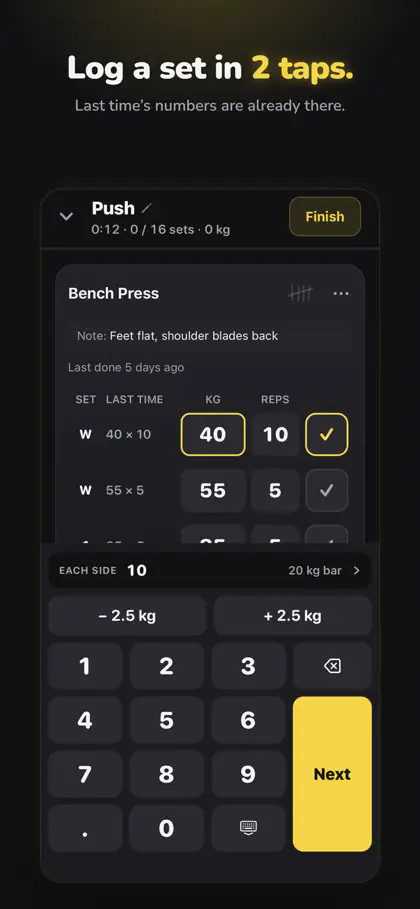
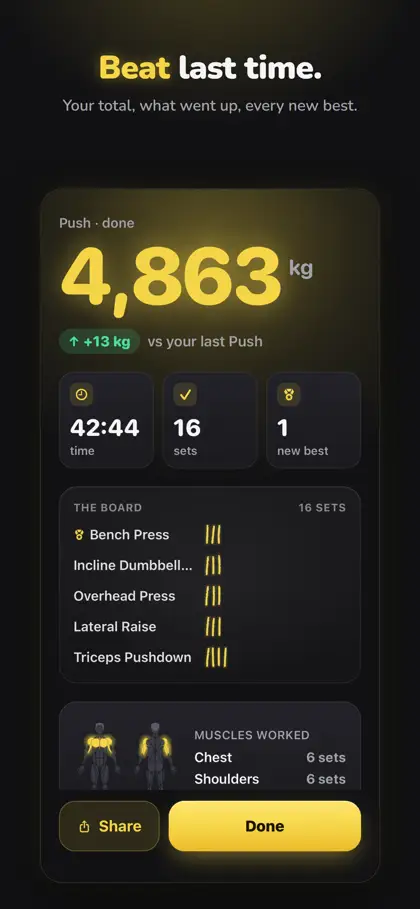
- Last time’s numbers, already there. Tap ✓ and the set is logged.
- The rest timer starts itself when you check a set.
- Your full history is always free, back to your first workout.
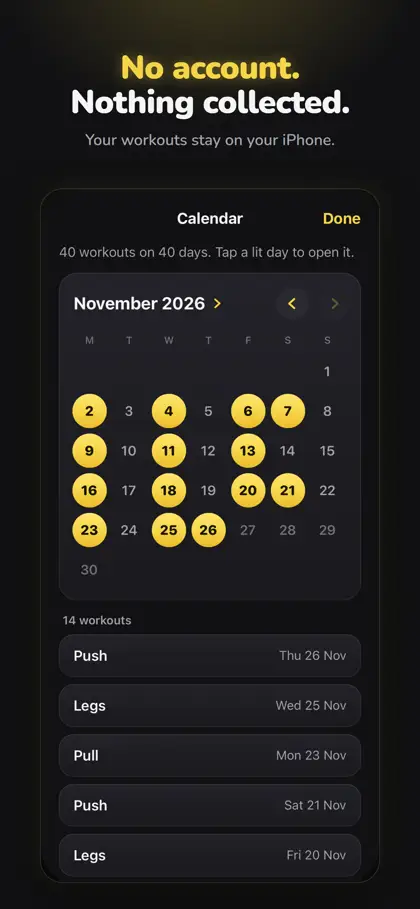
- Everything stays on your iPhone. No sign-up, no servers, works offline.
- Free to use. Pro is one payment, no subscription (what Pro adds).
How to
Start from a ready-made plan
Workout tab → Pick a ready-made plan (shown while you have no routines), or New routine → Or start from a ready-made plan. There are six, for 3 to 6 days a week: Full Body, 5×5 Strength, Upper Lower, Body Part Split, Push Pull Legs + Upper Lower, and Push Pull Legs. Each one shows an example week and every workout with its sets and reps; one tap turns it into your routines, and Next up on the Workout tab walks through them in order. Adding a plan again never makes copies.
While you log, an exercise shows its goal, for example “Goal: 8–12 reps”. To change it: Workout tab → Edit on the routine → ⋯ next to the exercise → Rep goal. With Pro, the goal also drives auto progression: once every working set reaches the goal, the weight goes up next time.
Supersets and drop sets
Superset: in a workout or in Edit routine, tap ⋯ on an exercise → Superset with… and pick the others. You then do one set of each back to back; the rest timer starts only after the last one, and a yellow bracket ties their cards together. ⋯ → Remove from superset takes one out again.
Drop set: ⋯ → Add drop set, or swipe a set to the left and tap Drop. It is marked D and has no rest before it. Routines, History and backups keep both, and they come over from Hevy (drop sets from Strong too).
Light, dark and accent colors
Workout tab → gear icon (Settings) → Appearance: System follows your iPhone, or pick Light or Dark. Free for everyone. With Pro you can also pick the accent color (chalk yellow, orange, pink, purple or blue): buttons, checked sets, charts, the chalk marks and your share pictures all take it.
Share a workout on your own photo
After a workout, tap Share on Workout done (or open a workout in History and tap the share button). For an exercise’s best numbers: open the exercise → Share records. Pick Photo instead of Card, then Take a photo (a gym selfie) or Choose a photo. Your numbers go on top; drag the photo to move it, and choose Post 4:5 or Story 9:16. The picture is made on your iPhone and goes only where you send it; Setkeeper doesn’t keep the photo.
English, German or Spanish
Setkeeper uses your iPhone’s language: English, Deutsch or Español. To use another one for Setkeeper only, open the iPhone’s Settings → Apps → Setkeeper → Language. The names of the common lifts are translated; the rest of the exercise library and the how-to steps stay in English. Numbers and dates follow your region, for example “62,5 kg” in Germany.
Common questions
Where are my workouts stored?
Only on your iPhone, inside the app. There is no account and no server, so nobody else can see them, including us. Because of that, keep a backup (next question).
How do I back up, or move to a new iPhone?
In the app: Workout tab → gear icon (Settings) → Back up to a file, then Save to Files (iCloud Drive keeps it off the phone) or send it to yourself.
On the new iPhone: Settings → Restore from a file and pick that file. The app shows what is in it and asks before anything is replaced.
Can I bring my history from Strong or Hevy?
Yes. Export the file there first:
Strong: Profile → Settings → Export Strong Data.
Hevy: Profile → Settings → Export & Import Data → Export Data → Export Workouts.
When the share sheet opens, tap Save to Files. Then in Setkeeper: Settings →
Import from Strong or Hevy. You see what is in the file before anything is saved, and
Settings can take an import out again.
Rest ends, but no alert while the phone is locked?
The alert needs your OK once: during a workout, tap Alert me when locked on the rest bar and allow notifications. If you said no back then, Setkeeper says “Alerts are off for Setkeeper” and its Turn on button opens the right page in iPhone Settings (Settings → Apps → Setkeeper → Notifications → Allow Notifications).
Still silent? The alert follows your iPhone’s sound settings: check the silent switch and any Focus (like Do Not Disturb or Fitness) that holds back notifications.
Which phones does it run on?
Setkeeper is made for iPhone and works without internet. There is no Android version yet. Your data stays on the iPhone you log on; to move it, use a backup file (see above).
What does Pro add, and what does it cost?
All-time charts (also of your body weight, body fat and tape), personal records, estimated 1-rep max, comparing progress photos, auto progression, the plate calculator, accent colors and export to a spreadsheet.
It is one payment of $9.99 (the App Store shows the price in your own currency), not a subscription, and it stays yours. Logging, routines, ready-made plans, supersets and drop sets, the rest timer, your full history, body weight and tape, progress photos, sharing, light and dark, the languages, import and backup are free for good.
I bought Pro on another iPhone. How do I get it back?
Settings → Setkeeper Pro → Restore purchase, signed in with the same Apple Account you bought it with. Nothing else is needed.
Kilograms or pounds?
The app starts with what your iPhone’s region uses. Change it any time in Settings → Units; your logged weights are never changed, only shown in the other unit.
How do I delete my data?
Delete the app. All of it is on your iPhone only, so that removes everything. Backup files you saved yourself stay where you put them until you delete them.